Navicat 18 Universal Multi-Database Client Review

Navicat Premium 18 is the latest release of the multi-database client for PostgreSQL, MySQL, MariaDB, SQL Server, Oracle, SQLite, MongoDB, Redis, and Snowflake. In this post, we examine its features and discuss why it could be a better option than your current database client software.
Why Use a Database Client?
Most database systems provide command-line facilities to connect to a datastore, then add, update, delete, and view data. Claiming they are rudimentary is an understatement.
Data design becomes complex as application requirements evolve. You must:
Create data structures, relationships, indexes, views, triggers, and other objects.
Import, export, migrate, and transform data.
Devise and assess queries for performance.
Backup and synchronize data elsewhere -- possibly to other databases.
Ensure you communicate and manage updates effectively across all systems.
Your application could be using:
SQL databases such as PostgreSQL, MySQL, MariaDB, SQL Server, Oracle, or SQLite.
NoSQL and other database types such as MongoDB, Redis, or Snowflake.
Or a combination of databases to control different aspects of your functionality.
A database client provides UI tools to help design, view, and manage your data.
Database Client Options
There are dozens of commercial and open-source database clients but most support:
a single database, such as MySQL. This limits your options and requires you to install and learn new applications when you use other databases.
a single type, such as relational SQL databases. Those cannot manage alternative database types such as MongoDB or Redis.
a single OS platform. This can lead to problems when there are developers in your organisation using different Operating Systems.
Navicat offers Windows (8+), macOS (Big Sur/11+), and Linux (Flatpak, AppImage) software that supports SQL and NoSQL databases. Two multi-database clients are available:
Navicat Premium Lite: a free multi-database client with the core design, data editing, import/export, and collaboration facilities.
Navicat Premium: the flagship multi-database client that offers further tools such as code completion, AI assistants, modelling, synchronization, automation, Business Intelligence, and more.
Note: Navicat products also include clients for individual databases, modelers, BI, collaboration, and monitoring.
This review covers Navicat Premium 18 which offers a 14-day evaluation period. Some of the features are also available in Navicat Premium Lite.
First Impressions
Installation is a simple matter of downloading and running the correct installation package. Once installed, Navicat Premium starts in seconds and shows a Welcome wizard to configure basic settings.
Navicat Premium is native OS software. It does not use Java, Electron, or browser technologies. That's unusual for cross-platform software, and it's a refreshing change compared to other database clients that are sluggish to start and use.
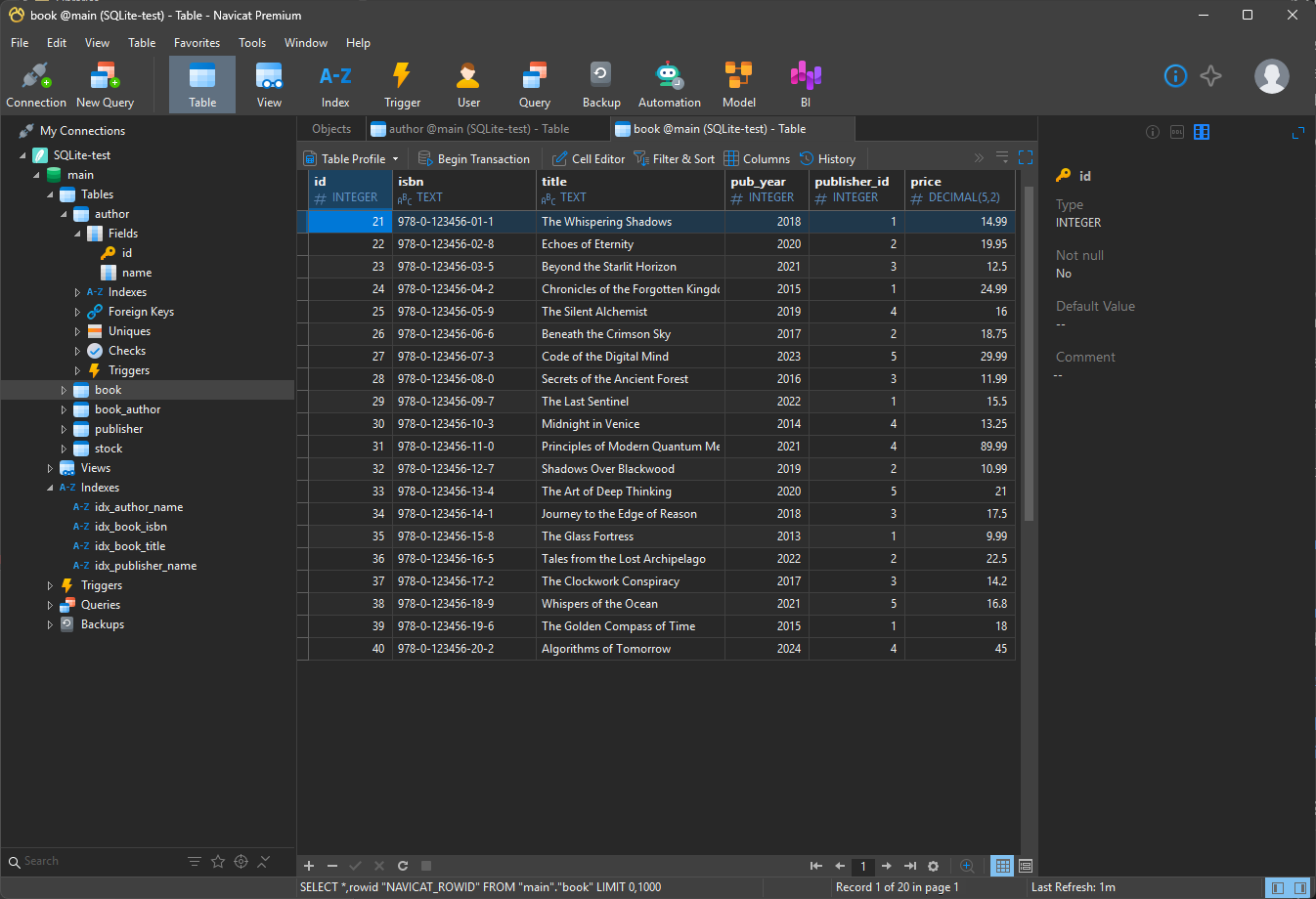
The Welcome wizard (and Options) offers a choice between light and dark modes.
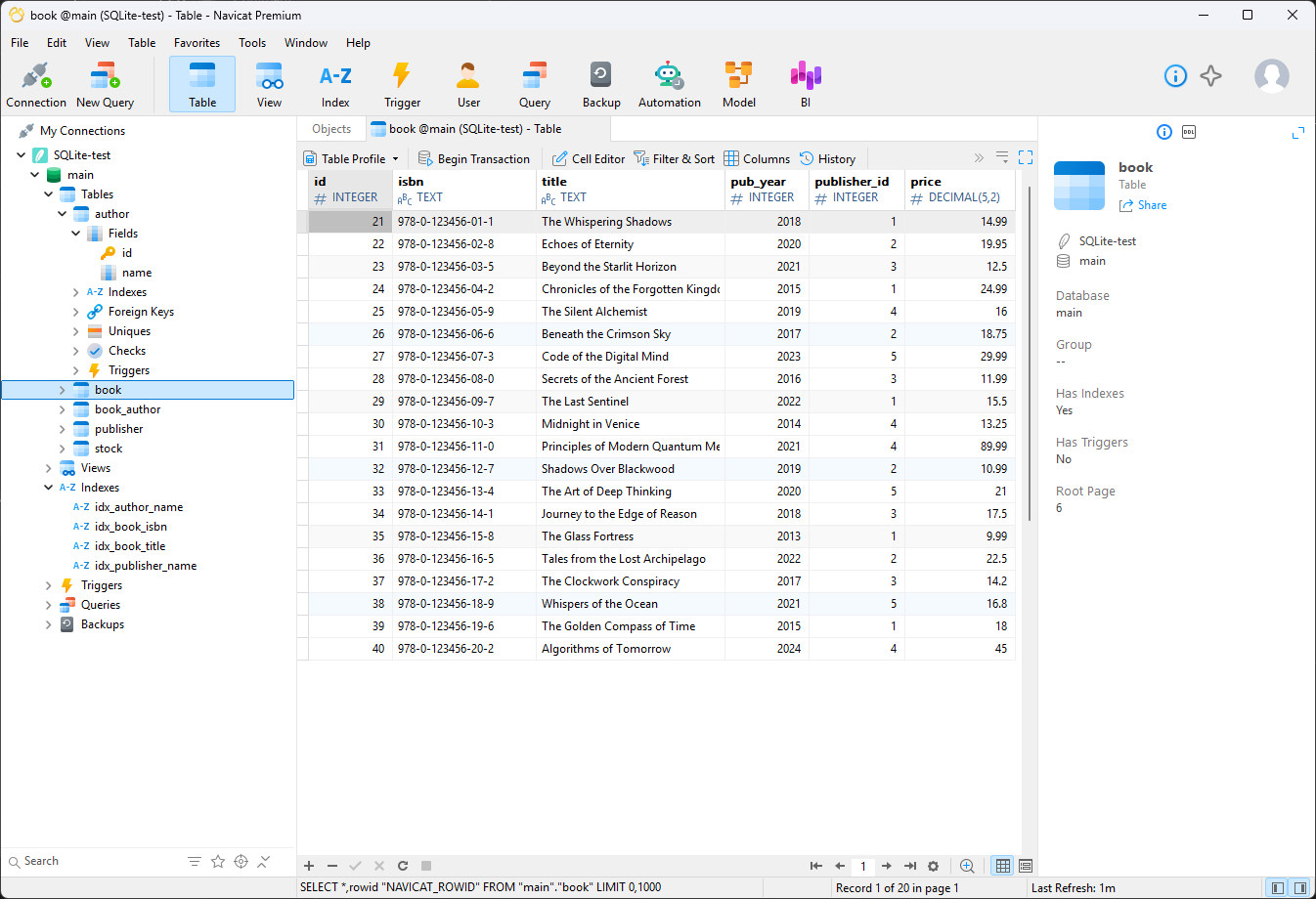
Developers often prefer dark mode. Unlike some other database clients, dark mode is not an afterthought -- it's well-designed and usable in Navicat:
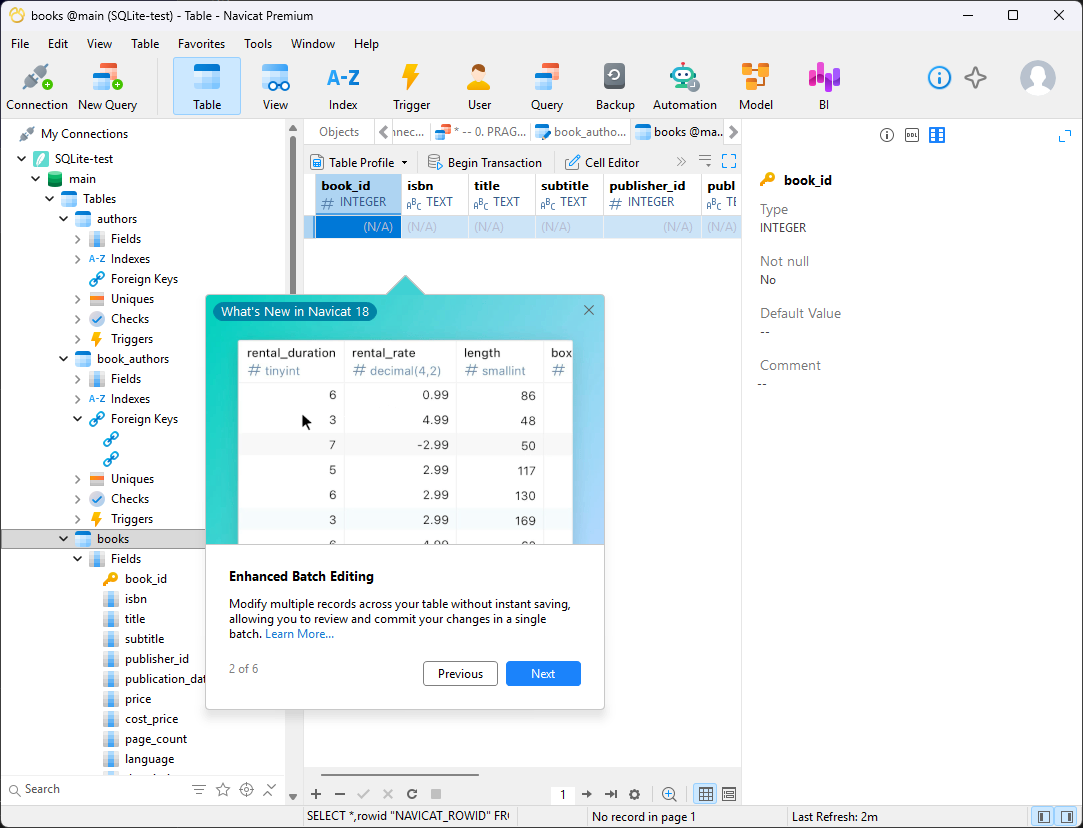
A useful "What's New" tour starts when you access a tool for the first time:
Connecting to Databases
The New Connection panel allows you to connect to a local or remote database using a port, SSH, SSL, or HTTP tunnels with authentication options including PAM, Kerberos, and LDAP. You can create or use SQLite databases by specifying the filename.
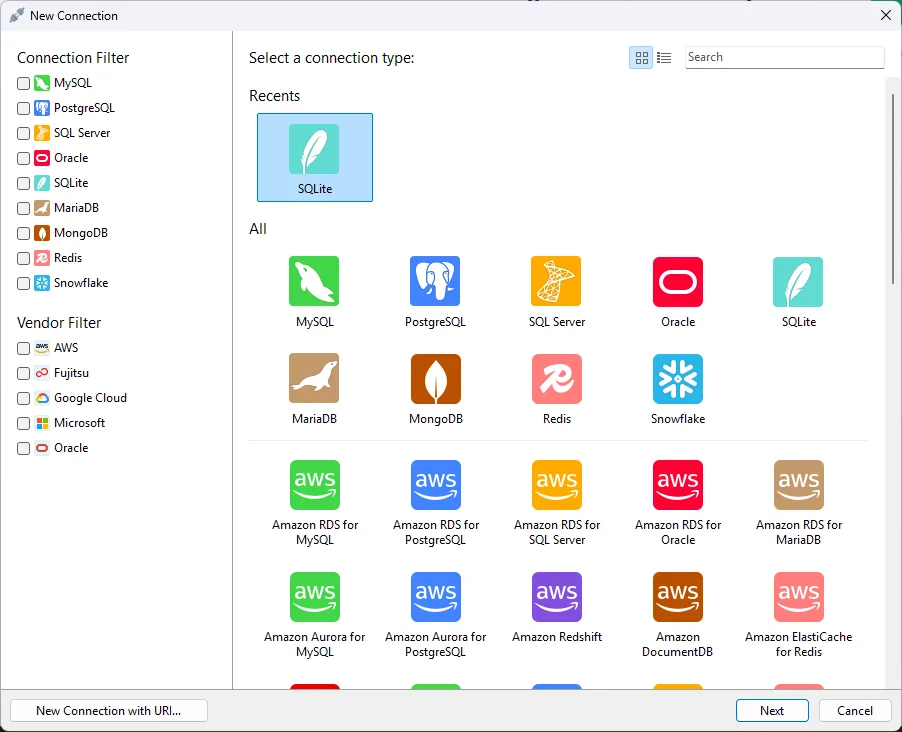
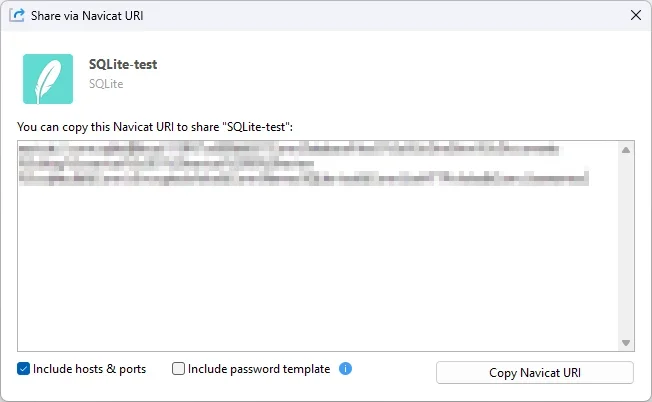
Navicat generates a URI for each connection. Making backups or sharing the URI with others becomes straightforward.
AI integration
AI integration is often a marketing ploy in apps, but Navicat Premium is one of those rare implementations where it's genuinely useful. Developers have refined database schemas and SQL queries since the 1970s, so AIs have a wealth of standard best-practices to follow.
At the time of writing, Navicat Premium 18 supports LLMs including ChatGPT, Gemini, Claude, Grok, DeepSeek, Qwen, Doubao, Kimi, OpenAI, Ollama, and LM Studio. You can select any number of models and add API keys in the Options: AI dialog. AI features then become available in the right-hand chat panel and throughout the application.
I started with: "Design a new SQLite database for a book shop inventory system using WAL journal mode. It must store book, publisher, author, and stock information." The AI generated an appropriate schema which I imported into a query pane with a single click.
Object Designer
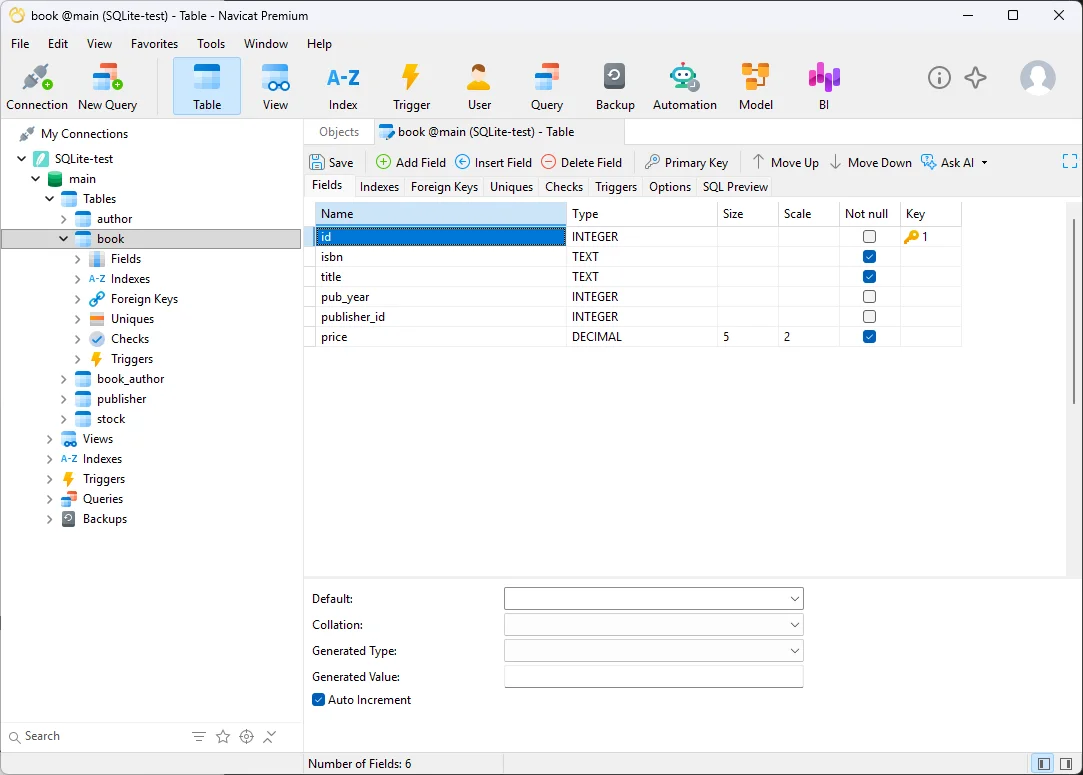
AI may get you part of the way, but you'll always need to alter tables, set foreign keys, add indexes, create views, define triggers, write stored procedures, and edit other database-specific objects. The main Table view provides quick access to the schema with a useful "Ask AI" option that can suggest indexes or other optimizations.
Models and Diagrams
Navicat Premium also provides a Model Workspace where you can import, visually design, and synchronize a database schema. Importing an existing SQL database is an easy way to get started:
From the Model pane, click New Workspace to open the Model Workspace window.
Choose Tools > Reverse Engineering > Reverse Database to Model...
In the wizard, choose one of your database connections then New Model as the Target.
Enter a model name and choose the Logical type. Click OK followed by Next.
Select all your tables, then check Import To Diagram and enter a name.
Click Start to create a diagram of your database schema.
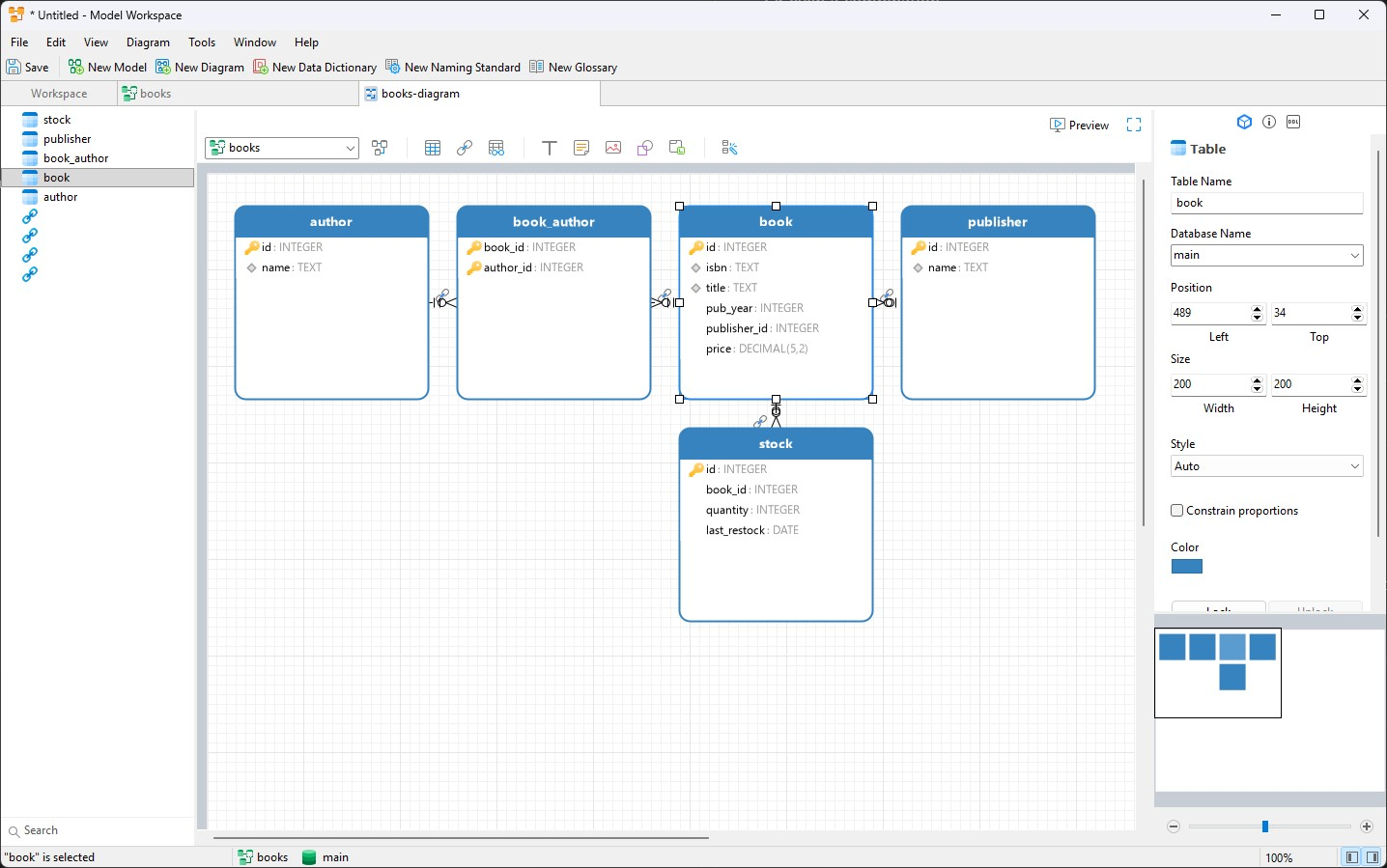
You can update and save your model as required. Navicat allows you to compare the changes, synchronize back to your database, or export a SQL script.
Data Editor
Click any table in the navigation pane to directly add, remove, or edit records in either grid or form views. Focus Mode (F11) makes the panel full-screen and removes all other distractions.
If you're starting with empty tables, Navicat provides a range of data-filling options...
Import Data
Use File > Import to import data directly from a URL or files in txt, CSV, JSON, XML, Excel, Access, ODBC, DBase, Paradox, or Parquet formats.
Data Generator
Use File (or Tools) > Data Generation to fill tables with realistic dummy data based on field types and names. Navicat makes a good guess at what you expect, but you can tweak the settings before generation.
Table views also offer a Fill with AI option and you can use an appropriate prompt in the AI chat window, e.g. "Fill the author table with 20 random names".
Data Profiling
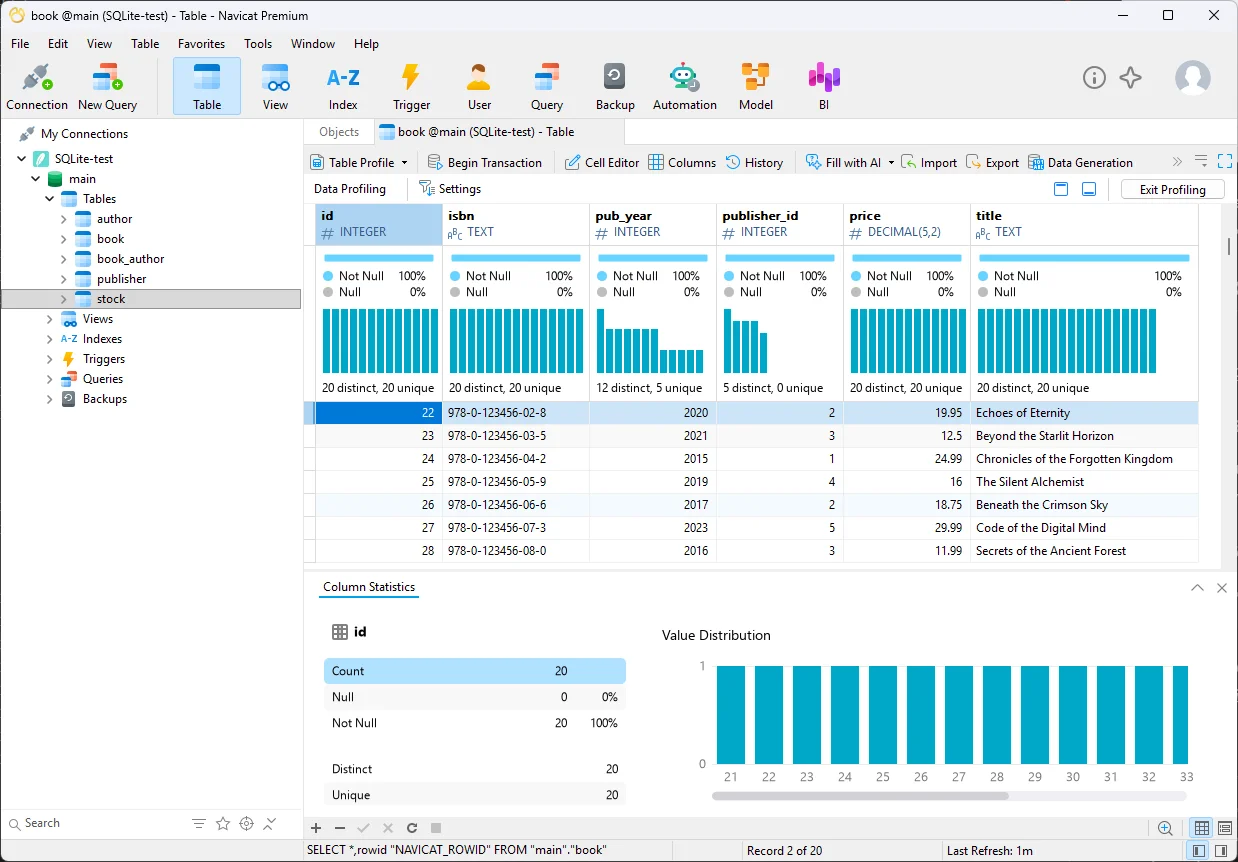
The Data Profiling panel shows a visualization of your data's characteristics. You could use this to assess whether generated values cover a range of possibilities.
Data Masking
Developers often need to import live data to run tests, debug applications, or assess new features. This can lead to privacy issues when that data contains personal, financial, or health information such as names, addresses, emails, birth dates, credit card numbers, and medication. You should also be wary about AI tools uploading your data to third-party servers for analysis.
The Navicat Premium Tools (and Files) menu provides a Data Masking wizard to anonymize data. It can alter an existing database, export it to another database, or output a SQL file. Choose the table fields you need to anonymize and configure substitute values as necessary, e.g. "John Smith" becomes "J*** S****" with a random birth date.
Navicat can also translate your masked data to another database type, e.g. PostgreSQL to MariaDB or SQLite. This is a powerful option which could help developers using different devices.
Query Editor and Debugger
You'll spend considerable time in the Query pane honing database queries. Navicat offers advanced editor facilities including code completion, snippets, error detection, syntax highlighting, code folding, word-wrap, brace matching, visual explaining, tooltips, jump to declaration, beautification, refactoring, zoom, find and replace, and more.
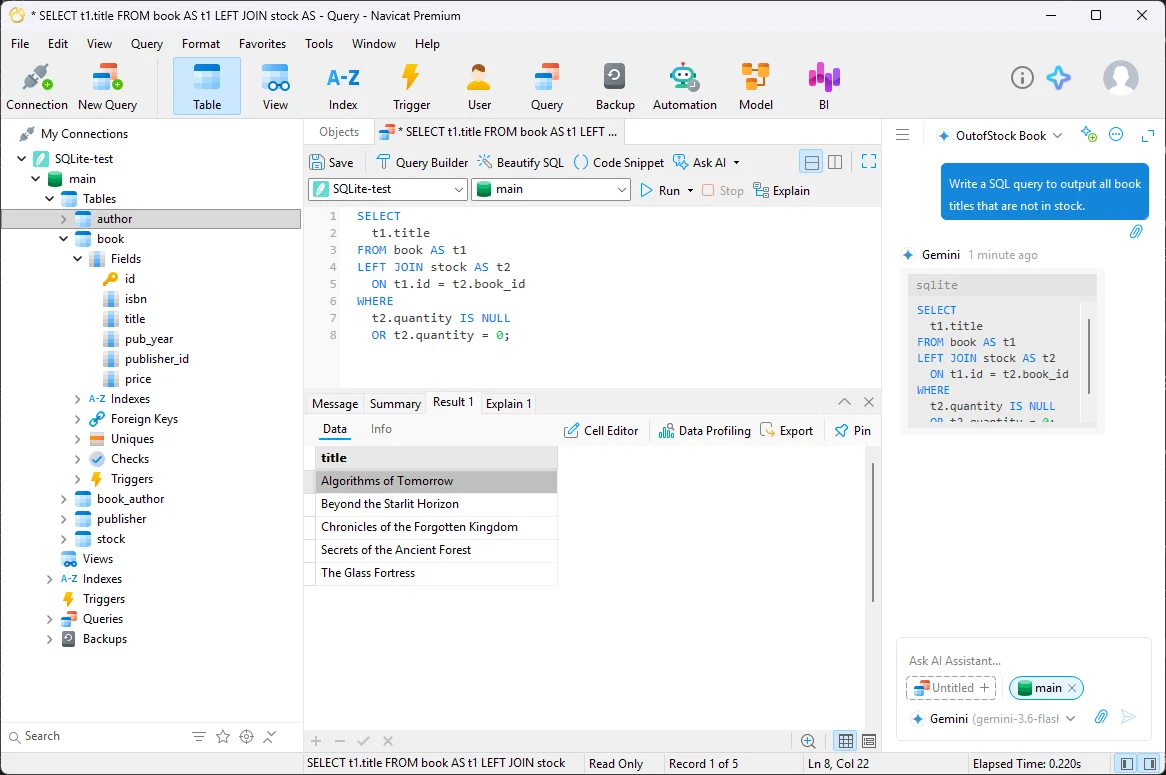
You can also prompt the AI to create a new query or provide options for improving an existing query's performance.
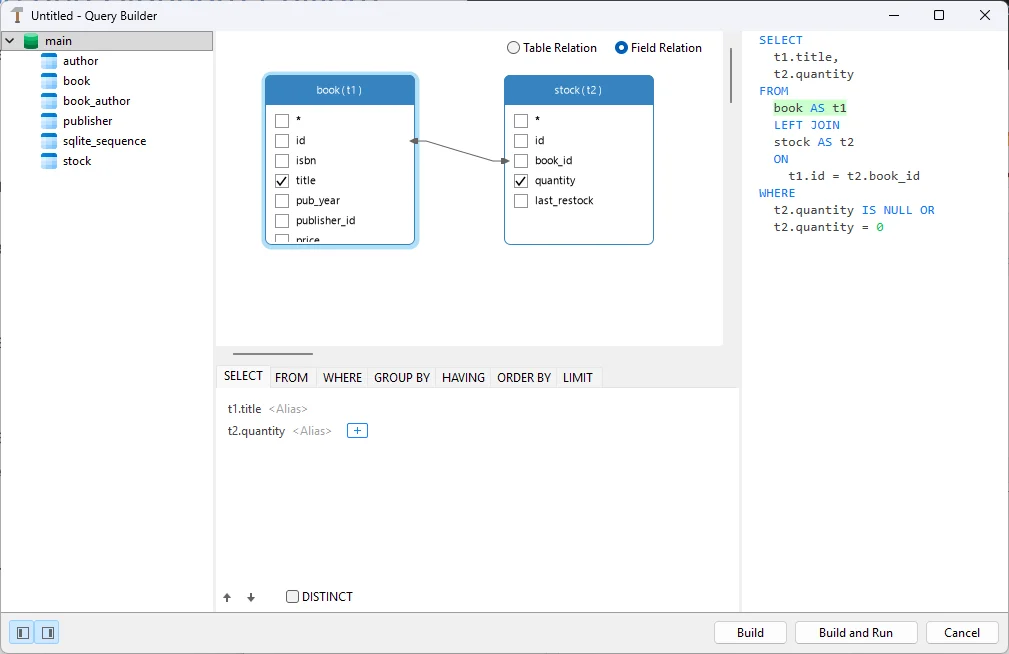
The Query Builder offers a visual representation of queries and views without requiring extensive SQL knowledge.
Backup and Synchronization
Anyone who's managed development and production WordPress databases has experienced the pain of synchronization:
developers can make configuration changes in development databases that are not live, and
authors can update posts in the live database that are not available in development.
The Structure Synchronization and Data Synchronization options in the Tools menu allow you to choose source and destination connections, compare specific tables, preview the changes, and push updates.
Of course, you should always back up first so head to Tools > Data Transfer to back up the whole database to another location or a file. Like Data Masking, Navicat can translate structures and data between database types, e.g. PostgreSQL to MariaDB or SQLite.
Automation
You can save any tool options to different Profiles. This includes queries, backups, data masking, transfers, synchronizations, generation, and more. Any task can be re-run without having to re-define its configuration parameters.
Navicat Premium allows any Profile to be automatically scheduled in the Automation pane. You can configure when tasks run, error handling criteria, and email notifications. Tasks execute using the OS's task scheduler, so there's no need for Navicat to be actively running.
More Features
This review skims Navicat's feature surface. The following facilities each merit their own review:
Global Search
Use Tools > Find in Database/Schema to search for text in definitions or data.
Favorites
Add tables and other database objects as Favorites so you can instantly return later.
Collaboration
You can synchronize configurations, connections, queries, models, profiles and more to Navicat Cloud. Your settings are then available on any device and you can easily collaborate with colleagues.
PostgreSQL PL/pgSQL Debugger
This provides step-by-step code debugging for stored procedures and functions. From the Debug button, you can run, step over, step in, step out, and stop running code to examine the call stack and variables.
Redis Pub/Sub Monitoring
Pub/Sub (Publish and Subscribe) allows you to subscribe to channels and receive messages when events occur.
MongoDB Aggregation Pipeline
Design the flow of operations to transform data, perform calculations, and generate aggregated results.
Data Dictionary
Tools > Data Dictionary can document the structure and semantics of your data models.
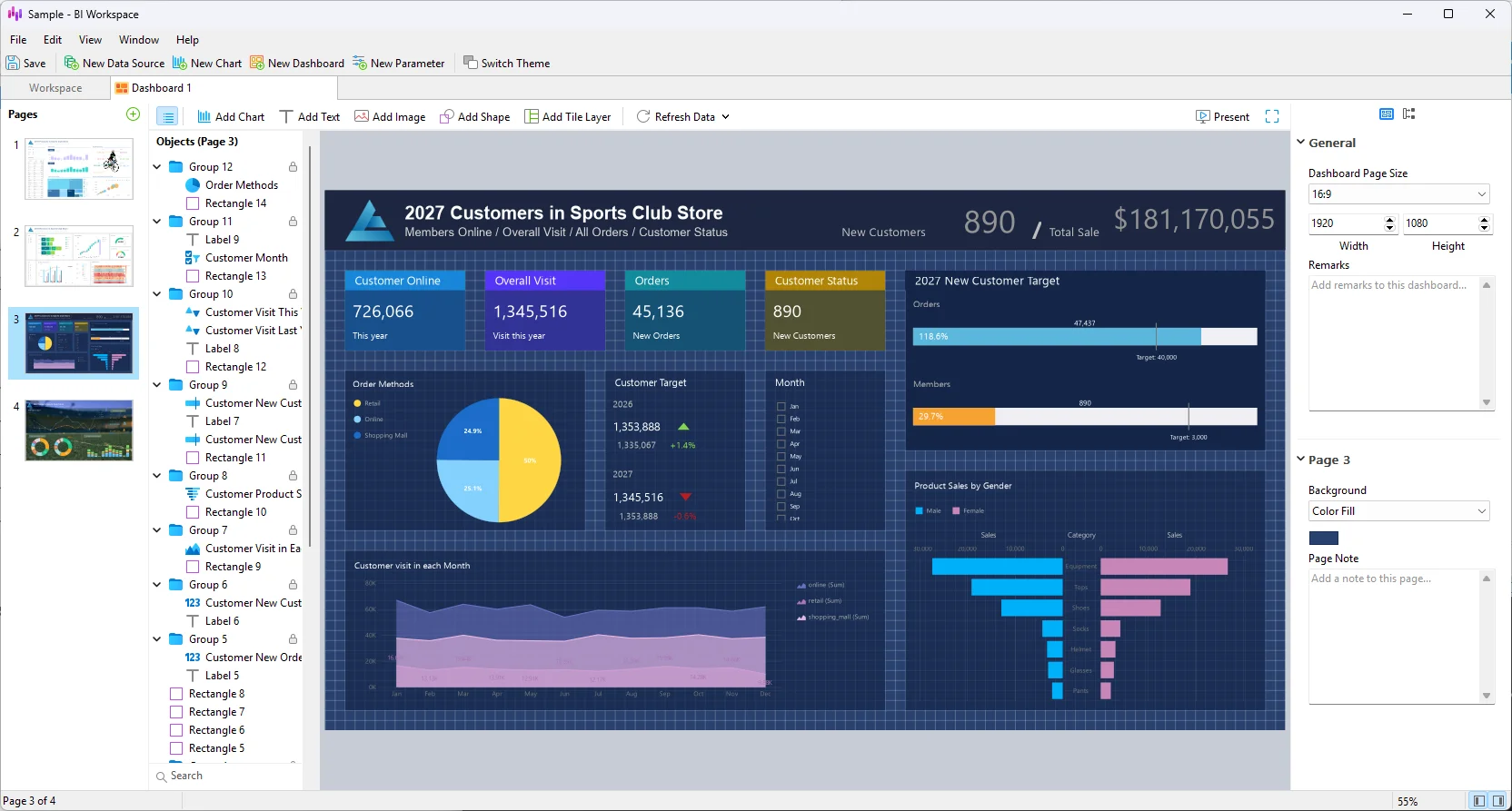
Business Intelligence Dashboards
The BI tool allows you to create dashboards with charts and tables that collate data from a variety of sources to provide an understandable summary of complex data.
Verdict
Navicat Premium 18 builds on the product's 24-year history to provide one of the most comprehensive cross-platform multi-database client available. The benefits:
a fast, native OS application
an attractive user interface with well-designed light and dark modes
supports all popular SQL, NoSQL, and Cloud databases
an extensive feature set with helpful tours and wizards
an innovative data masking facility
powerful cross-database migration and synchronization
a modern query code editor with debugger and collaboration options
the AI integration is actually useful!
a 14-day no-obligation free trial
The downside? The extensive feature set could be daunting to new users. If you can live without AI and more advanced features, free Navicat Premium Lite could be your best option.
About the author
I am a freelance UK full-stack web developer with a few decades experience.
Comments
Join the discussionNo comments yet. Be the first to comment.